
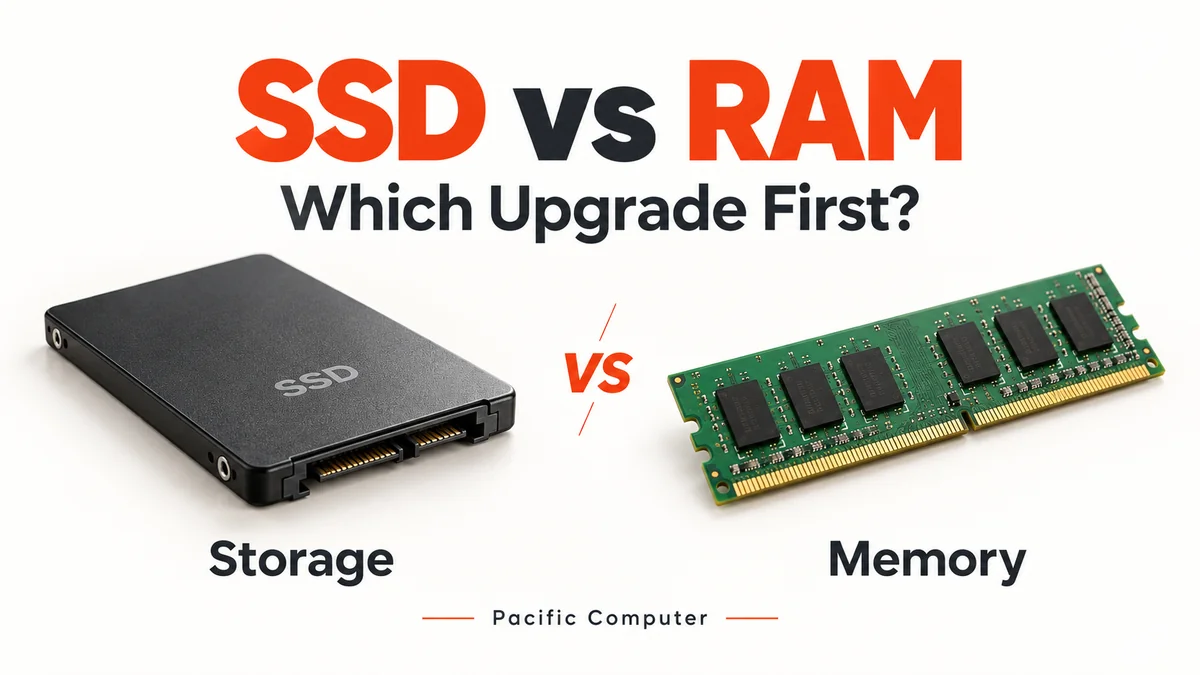
Is your computer taking too long to start, open applications or switch between tasks? Before buying a new system, you may be considering an SSD or RAM upgrade. Both can improve performance, but they solve different problems.
The right choice depends on your existing hardware, the applications you use and when the slowdown happens. This SSD vs RAM upgrade guide explains what each component does, how to identify your needs and what to check before purchasing.
What Is the Difference Between SSD and RAM?
An SSD, or solid-state drive, stores your operating system, software, documents and other files. It keeps this information when the computer is switched off.
RAM, or random-access memory, provides temporary working space for applications and data currently in use. Its contents are cleared when power is removed.
Think of storage as a filing cabinet and RAM as your desk. A faster filing cabinet helps you retrieve information quickly, while a larger desk gives you more room to work with several things at once.
When Should You Upgrade to an SSD?
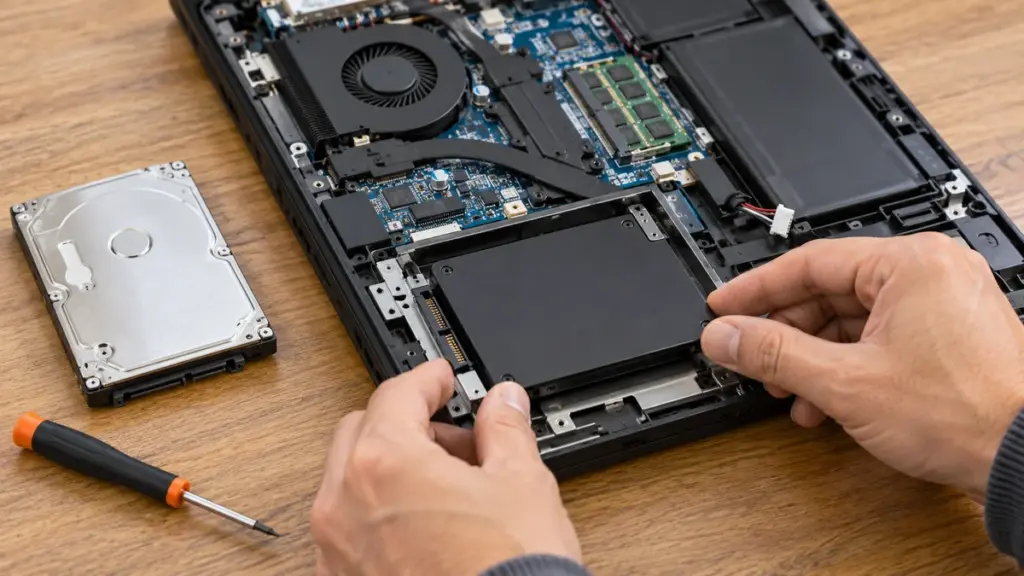
An SSD is worth considering when your computer still uses a traditional hard disk drive, especially if starting the system or opening applications takes a long time.
SSDs access data without the spinning disks and moving read heads found in hard drives. Replacing a working but slow HDD with a compatible SSD can reduce waiting during startup, application loading and file access. The improvement depends on the system and the task.
Before choosing one, consider:
- Whether your current operating system is installed on an HDD or SSD.
- How much storage your files and applications require.
- Which drive types your computer supports.
- Whether you will transfer your existing installation or start with a fresh setup.
For example, an office computer that takes several minutes to become usable each morning deserves a storage assessment. However, a slow startup alone does not prove the drive is responsible.
When Should You Upgrade RAM?
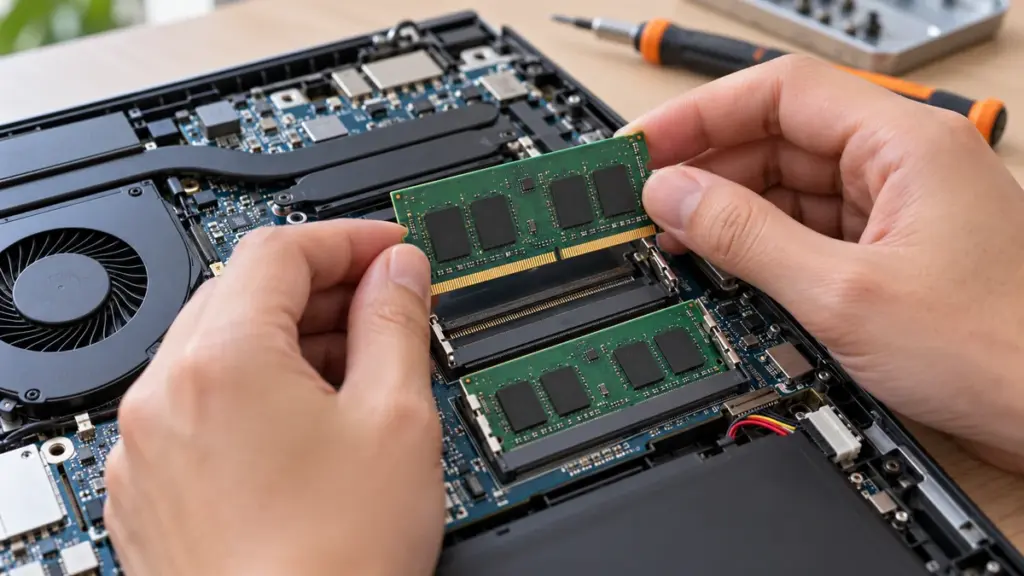
A RAM upgrade is more relevant when your system struggles with several applications running together. You might notice slow switching between a browser, spreadsheets, accounting software and a video meeting.
More memory allows a computer to keep more working data readily available. It can help when your current memory capacity is insufficient for your workload.
Consider your usual working day. Do you keep many browser tabs open? Do you work with large documents or several business applications? Does the computer become more responsive after you close some programs?
These observations help guide an assessment. If your system already has enough memory for your work, adding more capacity may make little difference.
SSD vs RAM Upgrade: A Quick Comparison
| Your situation | What to assess first |
|---|---|
| Your computer uses an HDD and loads applications slowly | A compatible SSD upgrade |
| Performance drops when several programs are open | RAM usage and upgrade options |
| Your system already has an SSD but struggles with multitasking | Available memory and application requirements |
| Your device has limited RAM and an older HDD | A combined upgrade, after checking compatibility |
| You experience crashes, overheating or unexpected shutdowns | Diagnosis before purchasing components |
Use this table as a starting point. A proper assessment can prevent spending money on an upgrade that does not address the actual problem.
Check Compatibility Before Buying
RAM and SSD products are not universally interchangeable. Start with your exact laptop model or desktop motherboard model, then check the manufacturer’s documentation.
For RAM, confirm the supported memory generation, module format, maximum capacity and installation requirements. Some laptops have soldered memory, which can limit upgrade options. A memory manufacturer’s compatibility tool can also help identify suitable parts.
For an SSD, check the supported interface, physical size and available connection. Ask the seller to confirm compatibility with your exact system instead of choosing only by capacity or advertised speed.
Keep the model information ready when requesting a quotation. This makes it easier to compare suitable options and understand what installation will involve.
Plan the Upgrade Around Your Budget
Ask for a quotation that includes the component, installation and any data transfer or operating system setup. Comparing only the price of the part can leave you with an incomplete picture of the total cost.
Also explain what you want to improve. “I need faster startup” and “I need to run several office applications together” are different requirements. A clear description helps the technician recommend an upgrade that matches your work.
Before handing over the computer, back up important documents, photographs and business files wherever possible. Confirm which files and applications must be available after the upgrade.
Should You Upgrade or Replace the Computer?
Consider the whole device before making a decision. If the computer otherwise meets your needs, a suitable upgrade may extend its useful life.
If it also needs several repairs or cannot support the software your work requires, compare the complete upgrade cost with a replacement system. Ask what improvement you can realistically expect and whether any existing limitations will remain.
Get Help Choosing the Right Upgrade
Pacific Computer helps home users and businesses assess computer performance and select compatible hardware upgrades. Whether you need an SSD, additional RAM or troubleshooting before making a purchase, we can help you understand your options.
We serve Faridabad, Delhi, Gurugram, Noida, Ghaziabad and other Delhi NCR locations. Explore our IT services or contact Pacific Computer with your computer model and the problems you are experiencing.