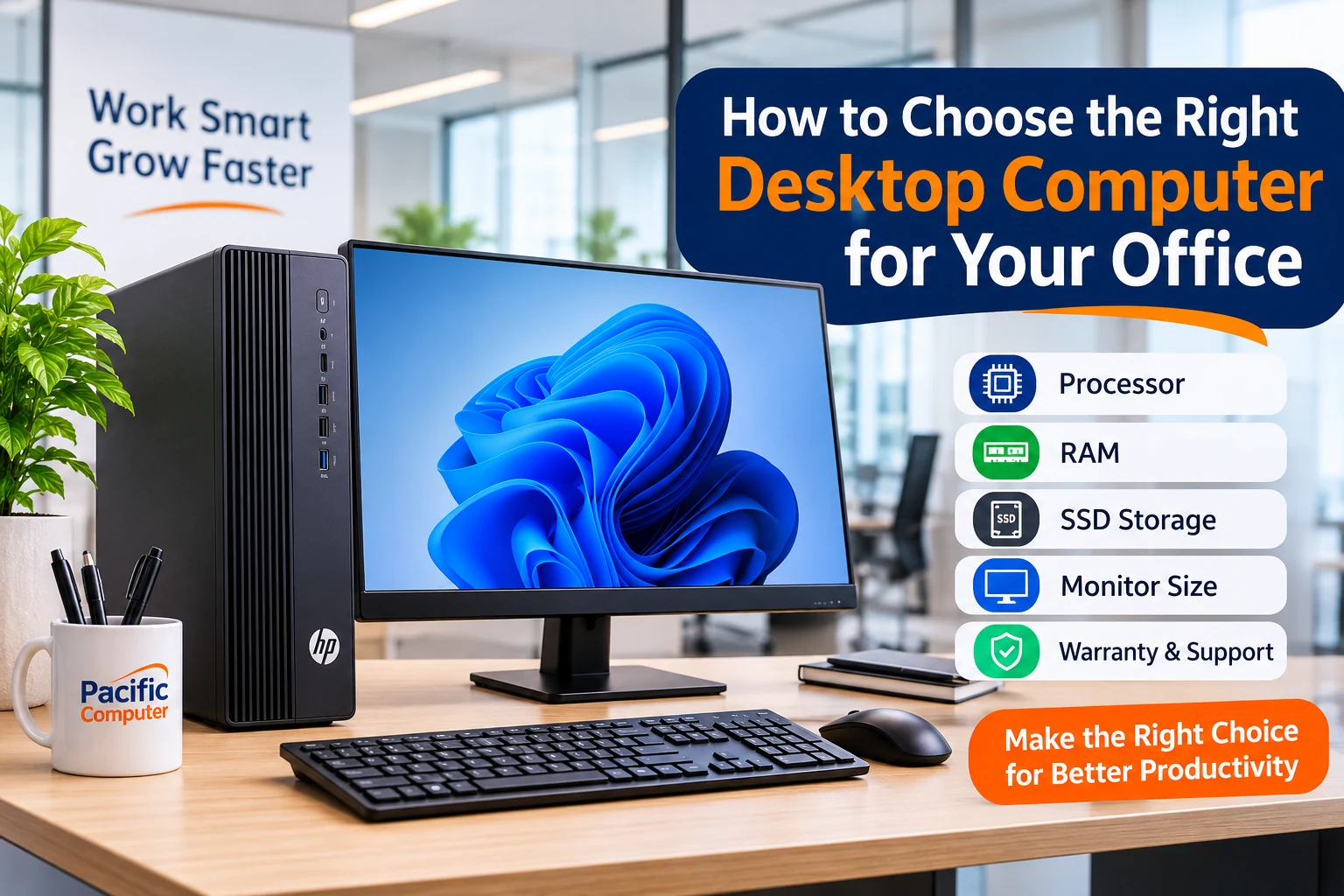
Choosing the right desktop computer for your office is important for maintaining productivity, improving work efficiency, and managing business operations smoothly. Whether you run a small business, corporate office, educational institution, or professional workplace, the right computer should match your daily work requirements.
With so many desktop computer configurations available, selecting the right one can be confusing. Processor, RAM, storage, performance, connectivity, and upgrade options are some important factors to consider before making a purchase.
In this guide, we explain how to choose the best desktop computer for your office based on your business needs and budget.
1. Understand Your Office Work Requirements
Before purchasing a desktop computer, identify the type of work your employees perform daily. Different office tasks require different hardware configurations.
Here are some common requirements:
- Basic Office Work: For MS Office, emails, internet browsing, billing, and data entry, an entry-level desktop with a modern Intel Core i3 or AMD Ryzen 3 processor is generally sufficient.
- Business & Multitasking: For accounting software, multiple browser tabs, spreadsheets, presentations, and business applications, consider an Intel Core i5 or AMD Ryzen 5 processor.
- Design & Professional Applications: For graphic designing, video editing, CAD, and other demanding applications, choose a higher-performance processor, sufficient RAM, and a dedicated graphics card where required.
Selecting a computer according to actual usage helps avoid unnecessary expenses while ensuring reliable performance.
2. Choose the Right Processor
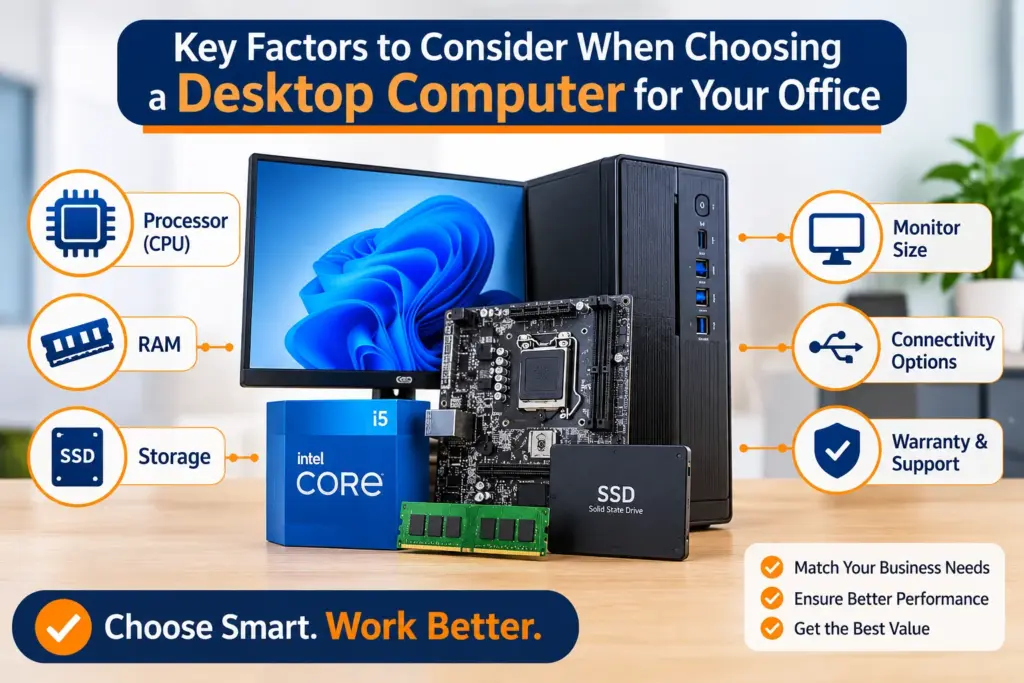
The processor (CPU) is one of the most important components of a desktop computer. It determines how efficiently your system handles applications and multiple tasks.
Consider these processor categories:
- Intel Core i3 / AMD Ryzen 3: Suitable for everyday office work, billing, browsing, and documentation.
- Intel Core i5 / AMD Ryzen 5: Ideal for business applications, multitasking, and regular professional workloads.
- Intel Core i7 / AMD Ryzen 7: Recommended for demanding software, advanced multitasking, designing, and professional applications.
Always check the processor generation and exact model before purchasing. A newer processor generation can offer better performance and efficiency than an older model with a similar product name.
3. Select Sufficient RAM for Smooth Performance
RAM (Random Access Memory) allows your desktop computer to run multiple applications simultaneously.
Choosing sufficient RAM helps reduce slowdowns when working with large spreadsheets, accounting software, browser tabs, and other office applications.
Recommended RAM configurations:
- 8GB RAM: Suitable for basic office tasks and everyday computing.
- 16GB RAM: Recommended for most modern office environments and multitasking.
- 32GB RAM or more: Suitable for demanding professional applications and heavy workloads.
For most business users, 16GB RAM is a practical choice for a new office desktop computer.
4. Choose SSD Storage Instead of Relying on an HDD
Storage plays an important role in overall desktop performance.
An SSD (Solid State Drive) offers faster boot times, quicker application loading, and better responsiveness compared to a traditional HDD (Hard Disk Drive).
For office use, consider:
- 256GB SSD: Suitable for basic office applications and documents.
- 512GB SSD: A good choice for most office users.
- 1TB SSD: Recommended for users who regularly work with large files and business data.
If your business requires additional storage, you can also use a secondary HDD or an external storage solution.
5. Select the Right Monitor Size
A good monitor improves workplace comfort and makes everyday tasks easier.
Common monitor sizes include:
- 19–22 Inches: Suitable for basic office work and limited desk space.
- 24 Inches: A practical choice for spreadsheets, documentation, and multitasking.
- 27 Inches or Larger: Useful for designing, data analysis, and working with multiple windows.
For most office environments, a Full HD monitor with an appropriate screen size provides a comfortable working experience.
6. Check Connectivity and Expansion Options
Before purchasing a business desktop computer, check the available connectivity options.
Important features include:
- USB ports for keyboards, mice, printers, and external storage.
- HDMI or DisplayPort for monitor connectivity.
- Ethernet LAN for stable wired networking.
- Wi-Fi and Bluetooth, if required.
- Audio ports for headsets and speakers.
Also consider available RAM slots, storage expansion options, and PCIe slots. These features can help your desktop support future business requirements.
7. Consider Warranty and After-Sales Support
Office computers are essential business equipment. Unexpected hardware problems can interrupt daily operations and affect employee productivity.
Before purchasing, check:
- Manufacturer warranty coverage.
- Availability of technical support.
- Spare parts availability.
- On-site service options, where applicable.
- Upgrade and maintenance support.
Buying from a reliable computer supplier can make future maintenance and technical assistance easier.
8. Don’t Ignore Power Backup for Office Computers
Power interruptions and voltage fluctuations can affect office operations and may lead to unexpected shutdowns.
Consider using a suitable UPS (Uninterruptible Power Supply) with your desktop computer. It provides temporary backup power during electricity interruptions and gives users time to save their work and shut down systems safely.
Choose an appropriate UPS capacity according to the desktop, monitor, and other connected equipment.
Recommended Desktop Configuration for Office Use
The following configurations provide a starting point when planning desktop computers for different office requirements.
| Component | Basic Office | Standard Business |
|---|---|---|
| Processor | Core i3 / Ryzen 3 | Core i5 / Ryzen 5 |
| RAM | 8GB | 16GB |
| Storage | 256GB SSD | 512GB SSD |
| Monitor | 19–22 Inch | 22–24 Inch |
| Graphics | Integrated | Integrated / As Required |
| Usage | Billing, Email, MS Office | Multitasking, Accounting, Business Apps |
These are general recommendations. Actual requirements depend on software compatibility, workload, and business needs.
Common Mistakes to Avoid When Buying an Office Desktop
Avoid these common mistakes when selecting computers for your workplace:
- Buying a computer without understanding software requirements.
- Choosing insufficient RAM for multitasking.
- Purchasing an HDD-only system when faster SSD storage is needed.
- Ignoring processor generation and compatibility.
- Overlooking warranty and service support.
- Not considering future upgrades.
- Ignoring UPS and power backup requirements.
A little planning before purchasing can help businesses avoid unnecessary expenses and improve long-term value.
Conclusion
Choosing the right desktop computer for your office is about finding the right balance between performance, reliability, budget, and future requirements.
For basic office work, an entry-level configuration may be sufficient, while businesses handling multiple applications and demanding workloads should consider higher-performance systems with adequate RAM and SSD storage.
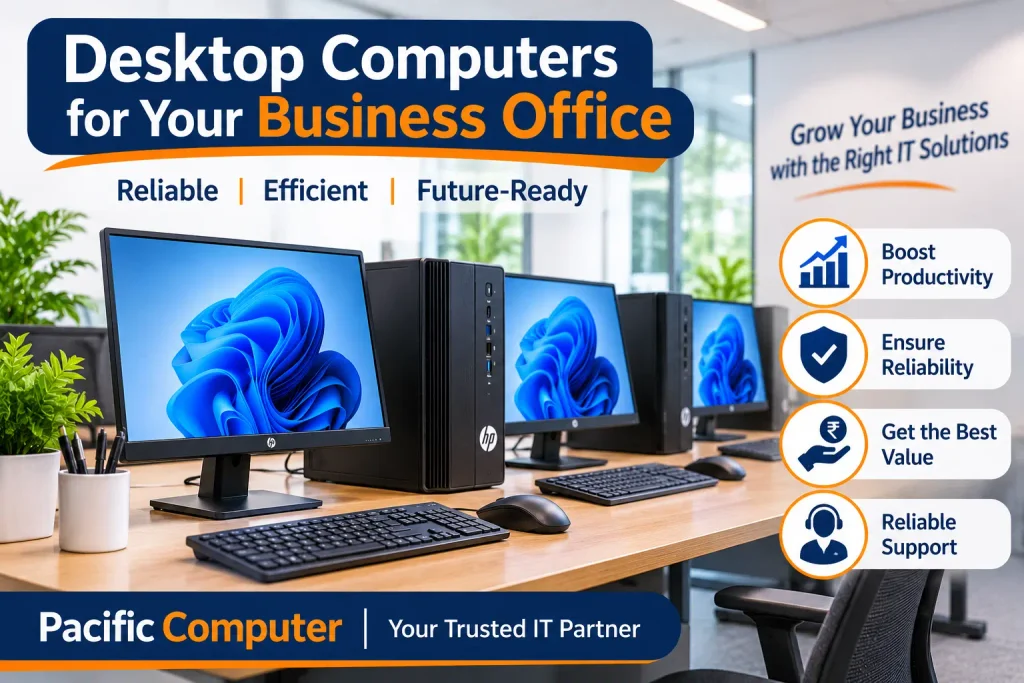
At Pacific Computer, we help businesses and institutions with desktop computers, laptops, printers, UPS systems, networking solutions, and IT infrastructure requirements.
Whether you need a single desktop or multiple computer systems for your office, selecting the right configuration can help your business work more efficiently.
Looking for desktop computers for your office?
Visit Pacific Computer to explore business IT solutions or contact our team for assistance in selecting the right desktop configuration for your requirements.
Frequently Asked Questions (FAQs)
1. Which desktop computer is best for office use?
A desktop with an Intel Core i5 or AMD Ryzen 5 processor, 16GB RAM, and a 512GB SSD is a good choice for most modern office environments.
2. How much RAM is required for an office desktop?
8GB RAM is suitable for basic office tasks, while 16GB RAM is recommended for multitasking and regular business applications.
3. Is an SSD necessary for an office computer?
Yes. An SSD provides faster boot times, quicker application loading, and better overall system responsiveness.
4. Which processor is better for office work, Intel or AMD?
Both Intel and AMD offer capable processors for office use. Compare the exact processor model, generation, performance, and price before making a decision.
5. Do office desktop computers need a UPS?
A UPS is recommended to provide temporary backup power during electricity interruptions and help users shut down their computers safely.
6. Where can I buy desktop computers for my office in Faridabad?
You can contact Pacific Computer, Faridabad, for desktop computers, laptops, printers, UPS systems, and business IT solutions.