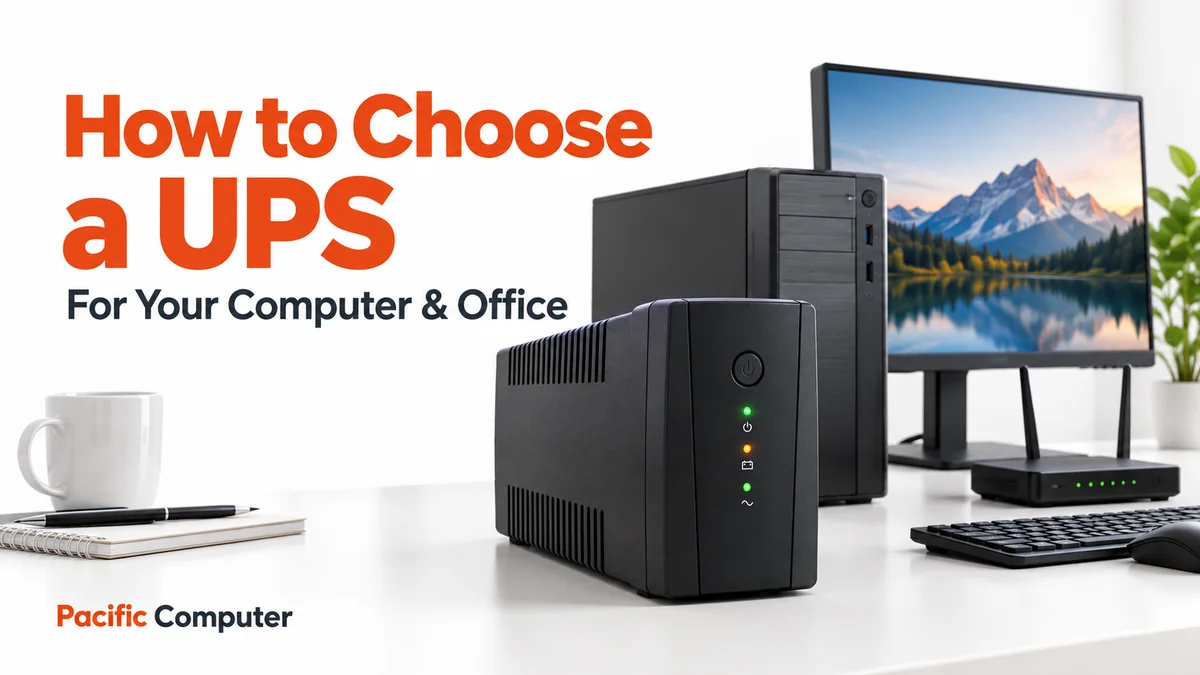
A sudden power cut can interrupt an important video meeting, stop a billing transaction or cause you to lose unsaved work. A suitable uninterruptible power supply, commonly called a UPS, provides temporary battery backup so connected equipment can continue operating for a limited time.
However, choosing a UPS involves more than looking at its price or the VA number printed on the box. You need to consider the equipment you want to connect, its power requirements and the backup time you need.
This guide explains how to choose a UPS for your computer, home workspace or office.
1. List the Devices That Need Backup
Start by writing down the equipment you want to keep running during a power cut. For a simple workstation, this may include:
- A desktop computer.
- One or two monitors.
- A Wi-Fi router.
- A modem or fibre ONT.
An office may also need backup for network switches, servers or other essential equipment. Include every device that will use the UPS when assessing the required capacity. Schneider Electric’s guidance specifically recommends accounting for the workstation, monitor and other connected equipment.
Decide which devices are essential. For example, keeping the computer running without its monitor may not help you finish your work. Similarly, powering a router alone may not maintain connectivity if the modem or ONT also loses power.
Prepare this equipment list before requesting a quotation. It gives the supplier a clearer starting point than simply asking for a “computer UPS.”

2. Understand VA and Watt Ratings
UPS specifications commonly show both volt-amperes, written as VA, and watts, written as W. These are different measurements, and both matter when choosing capacity.
Do not assume that a 1000VA UPS can supply 1000 watts. Check the model’s published output watt rating and ensure the connected equipment stays within both its watt and VA limits.
Ask the supplier to assess the expected load and leave suitable capacity for variations and planned additions. If you expect to add another monitor or more equipment later, mention that before buying.
Avoid selecting a model from its VA rating alone. Two products with similar names or headline capacities may have different specifications.
3. Decide How Much Backup Time You Need
Capacity and backup time answer different questions. Capacity tells you how much equipment a UPS can support; runtime tells you how long it can support that equipment during an outage.
Runtime depends on the connected load and the battery system. A UPS supporting fewer devices may operate for longer than the same model powering a heavier load. Compare the manufacturer’s runtime information at a load close to your own.
Think about your actual goal:
- Do you need enough time to save files and shut down?
- Do you want to finish a short meeting?
- Must essential business equipment remain available until another power source takes over?
Explain your requirement in minutes and describe the equipment involved. Avoid relying on a backup-time claim without knowing the conditions under which it was measured.
4. Choose the Appropriate UPS Type
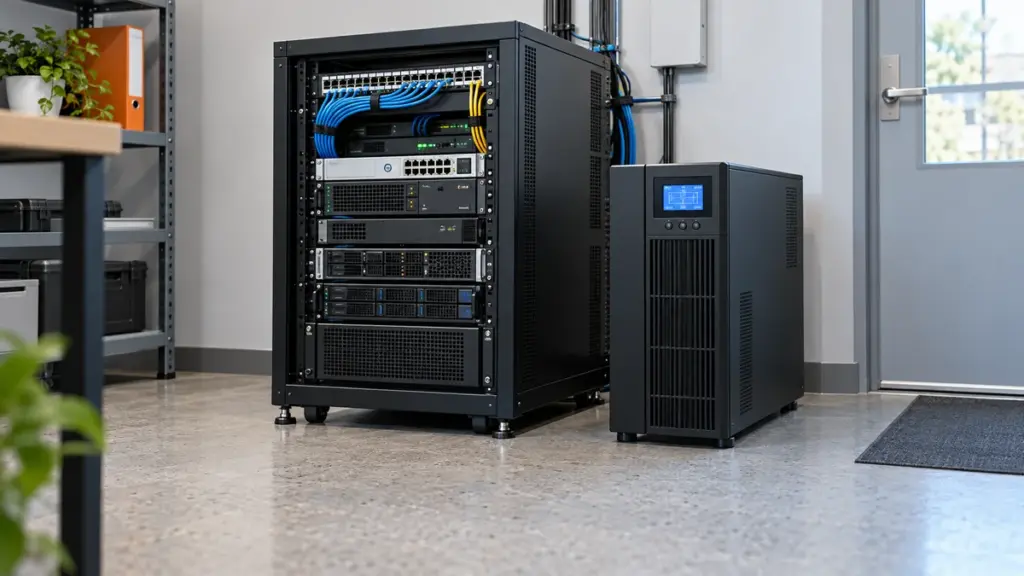
UPS systems generally fall into three groups: standby, line-interactive and online double-conversion. Each handles incoming power differently.
| UPS type | What it offers | Where to consider it |
|---|---|---|
| Standby or offline | Switches to battery when incoming power fails or falls outside its operating limits | Basic desktop backup needs |
| Line-interactive | Adds voltage regulation to handle certain supply fluctuations without immediately using the battery | Home workspaces and small offices |
| Online double-conversion | Continuously converts incoming power through DC and back to AC in normal online operation | Critical equipment and demanding power conditions |
Eaton identifies line-interactive models as useful where voltage fluctuations are common, while online double-conversion systems are suited to critical equipment and unreliable power conditions. The final choice still depends on the specific equipment and installation.
When comparing options, ask why a particular type is being recommended for your setup. The answer should relate to your requirements.
5. Check Connections and Everyday Features
Make sure the UPS has suitable output connections and enough battery-backed outlets for the equipment you intend to connect. Some models distinguish between battery-backed outlets and outlets that provide surge protection only.
Also check whether you need a status display, audible alerts or a supported computer connection for shutdown software. These features vary by model, so review the actual product specification before ordering. Eaton’s desktop buying guide highlights outlet availability as an important selection factor.
For an office purchase, ask who will receive fault alerts and who will handle shutdowns during an extended outage. A clear operating plan makes the equipment easier to manage.
6. Ask About Batteries, Warranty and Service
Before completing the purchase, request written details about the battery arrangement and the warranty coverage. Confirm whether batteries are included in the quoted price and ask about replacement availability.
Your quotation checklist should include:
- Exact UPS model and output ratings.
- Battery configuration.
- Expected runtime at your stated load.
- Warranty terms for the UPS and batteries.
- Installation requirements and any additional charges.
- Available service support.
Keep the invoice and product information together. This makes future servicing and replacement enquiries simpler.
Get Help Choosing a UPS
The right UPS should match your equipment, backup-time requirement and working environment. A home computer and an office server setup may need very different solutions, even when both are described as “IT equipment.”
Pacific Computer supplies UPS and power backup products and helps customers compare options for their requirements. We serve Faridabad, Delhi, Gurugram, Noida, Ghaziabad and other Delhi NCR locations.
Contact Pacific Computer with your equipment list and required backup time, or explore our IT services for support with your wider computer and office setup.